Using the Report Viewer
The Report Viewer is a feature that allows you to view and interact with your report results before downloading them. Instead of immediately exporting a report, you can review, search, filter, and organize your data right on your screen.
Searching and Filtering Your Results
Opening the Report Viewer
After running a report:
-
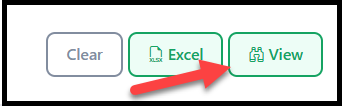
Click View at the bottom of the report.
-
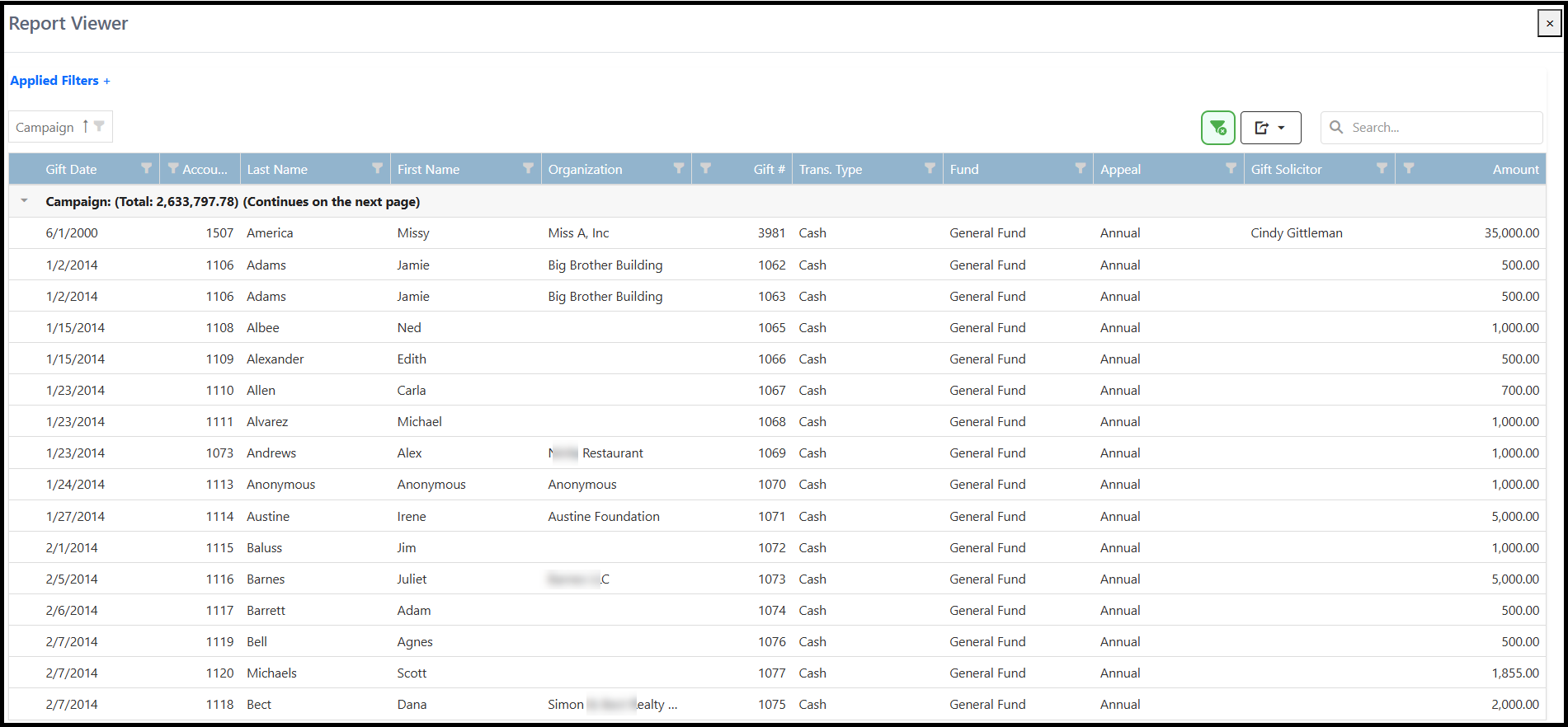
Your report will open in the Report Viewer as a grid of data.
Searching and Filtering Your Results
There are two easy ways to find the information you're looking for.
Search Across the Report
Use the Search box in the upper right corner of the Report Viewer to quickly search your report.

Filter Individual Columns
Each column includes a filter (funnel) icon that allows you to filter that specific field.
For example, you can filter your report to show:
- Specific campaigns
- Particular events
- Certain gift types
- Records with or without a value in a field

Grouping Your Data
Some reports will already be grouped by a specific field when they open.
If you'd like to group the report by an additional field:
- Click and hold the column heading you'd like to group by.
- Drag it to the grouping area above the grid, next to the existing grouped field.
- Release your mouse.
Your report will now be grouped by both fields.


Clearing Your Changes
If you've applied filters or grouping and want to start over, simply click Clear to restore the original view.

Downloading Your Report
Once you've organized the report the way you'd like, click the Download icon.
You can export the report as:
- Excel (.XLSX)
- CSV
Note: Your downloaded file will match the current view of the Report Viewer, including any filters, grouping, or sorting you've applied.

Report Writer Tip
The Report Viewer is especially helpful when used with Report Writer.
For example, if you include fields like Tribute, Campaign, or Event in your report, you can use the Report Viewer to quickly narrow your results without creating multiple reports.
Some examples include:
- Showing only gifts where the Tribute field is not blank.
- Viewing only donations from selected campaigns.
- Displaying gifts for specific events.
- Filtering large reports down to just the records you need.
Important: To filter on a field in the Report Viewer, that field must first be included in your selected fields in Report Writer.
Using the Report Viewer lets you build one comprehensive report, then quickly filter and export only the data you need.