How to Create a QR Code of Your Web Form
QR codes make it easy for donors and supporters to access your Eleo web forms from printed materials, emails, or events. You can create a QR code for any Eleo web form link directly from most modern web browsers; no third‑party tools required.
Google Chrome
Desktop
- Open your Eleo web form link in Chrome.
- Click once in the address bar.
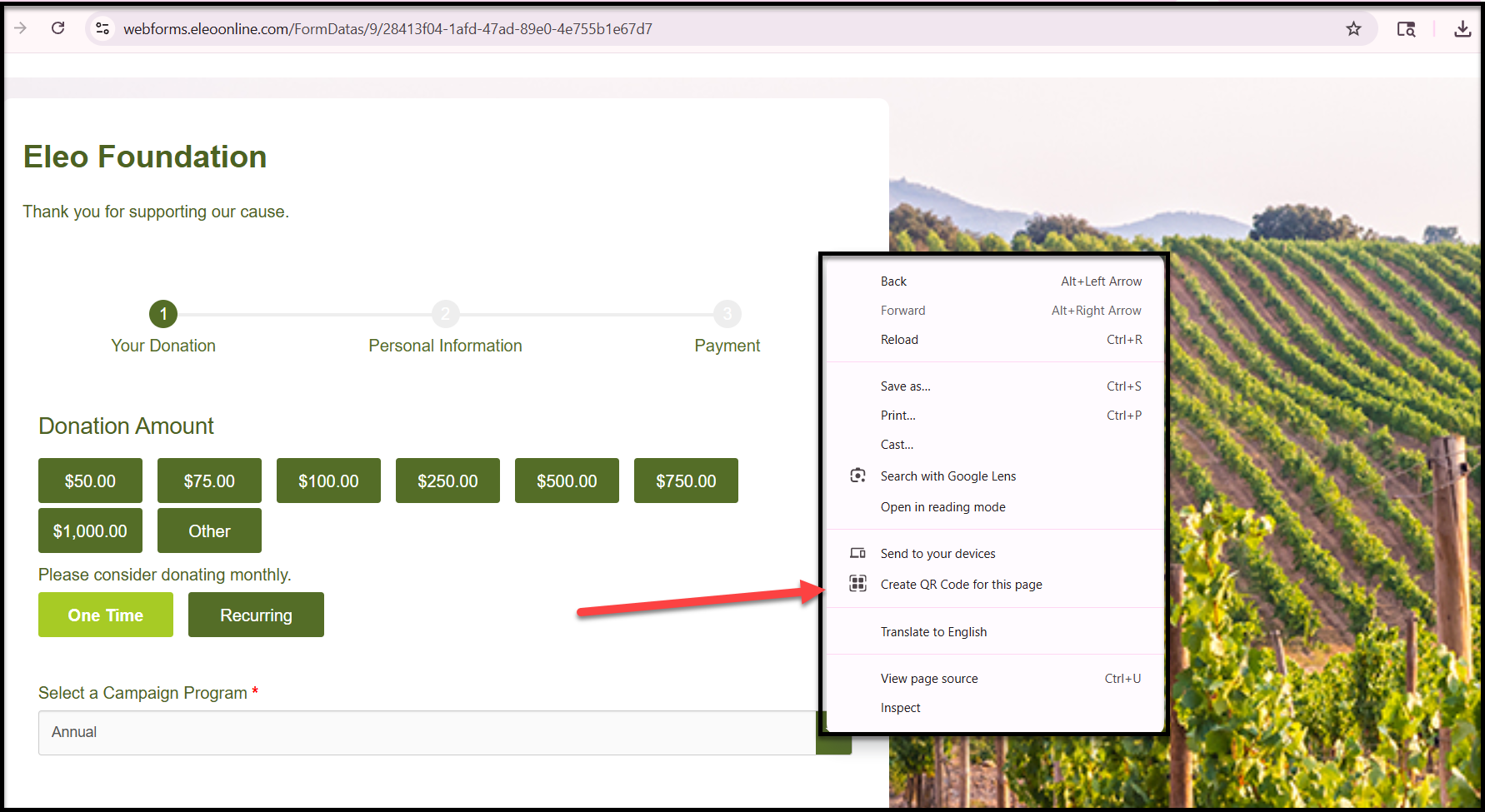
- Select the QR code icon on the right (or right‑click anywhere on the page and choose Create QR code for this page).
-
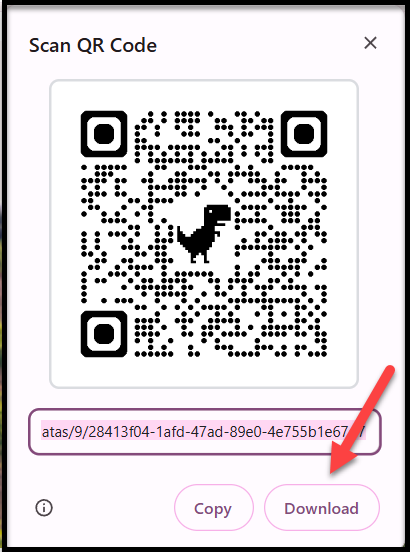
Download or copy the QR code image.
Mobile (iOS or Android)
- Open the Eleo web form link in Chrome.
- Tap the three dots menu.
- Tap Share.
- Select QR Code.
- Save or share the image.
Microsoft Edge
- Open your Eleo web form link in Edge.
- Click in the address bar.
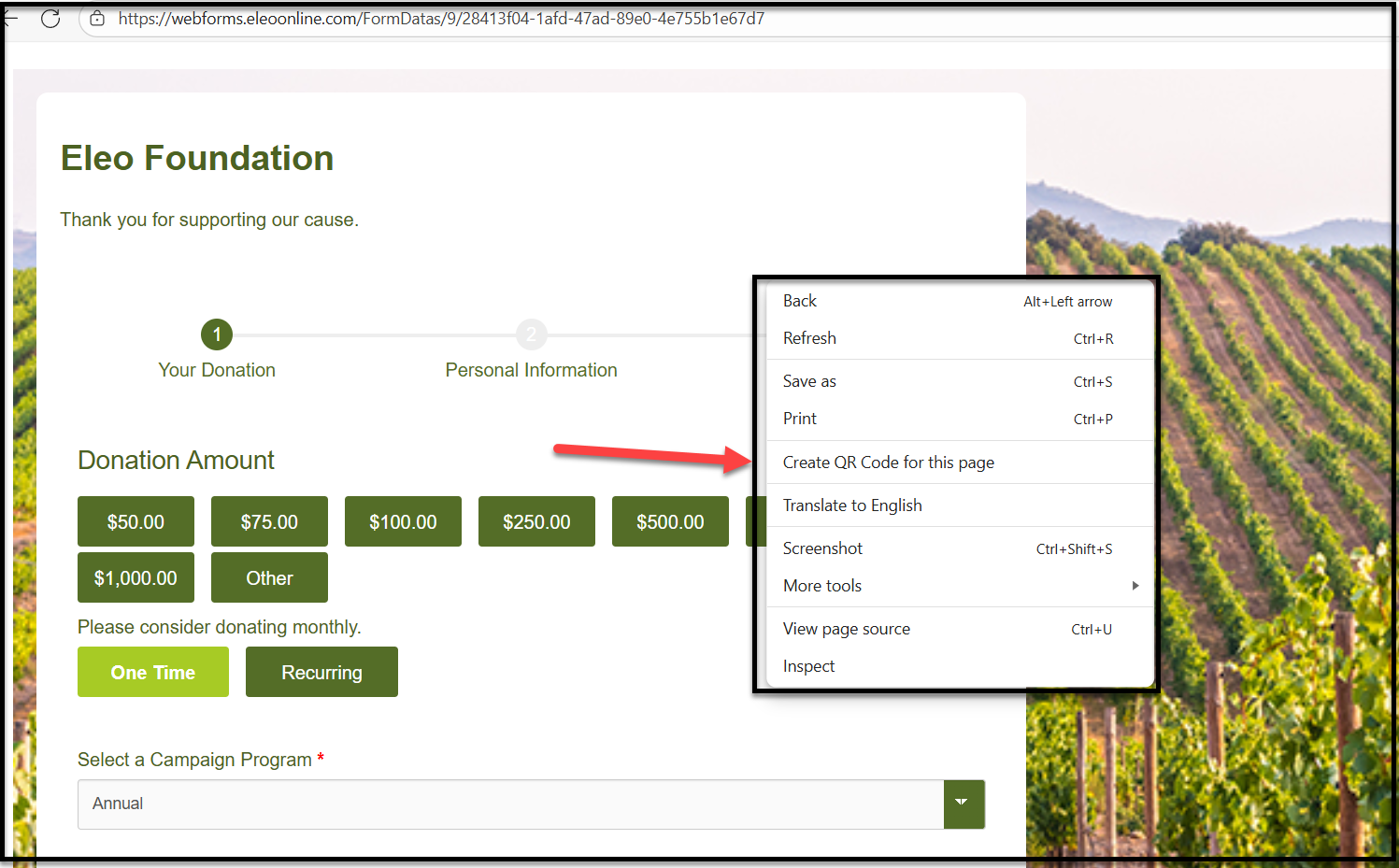
- Click the QR code icon or right-click anywhere on the form and choose Create QR Code for this page.
-
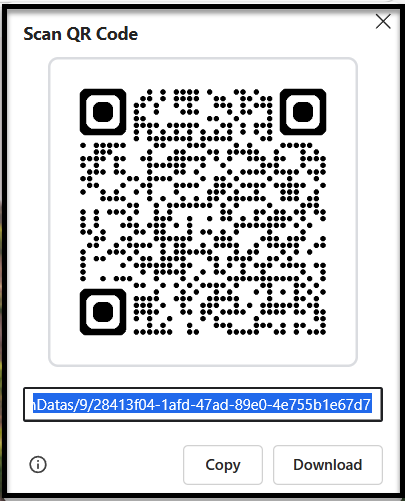
Download or copy the QR code image.
Safari
Mac
- Open your Eleo web form link in Safari.
- Right‑click in the address bar.
- Select Create QR Code for This Page.
- Save the image to your computer.
iPhone or iPad
- Open the Eleo web form link in Safari.
- Tap the Share icon.
- Scroll down and tap Create QR Code.
- Save or share the QR code image.
Firefox
Firefox does not currently offer a built‑in QR code generator on desktop.
You can still create a QR code by:
- Using a trusted QR code generator website and pasting in your Eleo web form link, or
- Installing a QR code extension from the Firefox Add‑Ons store.
Using Your QR Code
Once downloaded, your QR code image can be:
- Added to flyers, posters, or mailings
- Included in emails or newsletters
- Printed for events, donation tables, or check‑in stations
Scanning the QR code will take users directly to your Eleo web form.
User Tip: Always test your QR code on a mobile device before sharing or printing to ensure it opens the correct form.