Soft Credit Acknowledgements
While soft credits do not represent additional funds received, acknowledging soft-credited donors can be a valuable part of donor stewardship. It provides an opportunity to recognize and thank supporters who are connected to a gift, even when they did not make the actual payment. This can be especially useful for Donor Advised Fund (DAF) gifts, where the DAF may be the legal donor but you may still want to recognize the individual who recommended the gift.
Marking a Soft Credit for Acknowledgement
Sending Acknowledgements in Batches
Creating a Soft Credit Acknowledgment Mailing
Available Fields in Soft Credit Acknowledgements
Using MailChimp or Constant Contact
Marking a Soft Credit for Acknowledgement
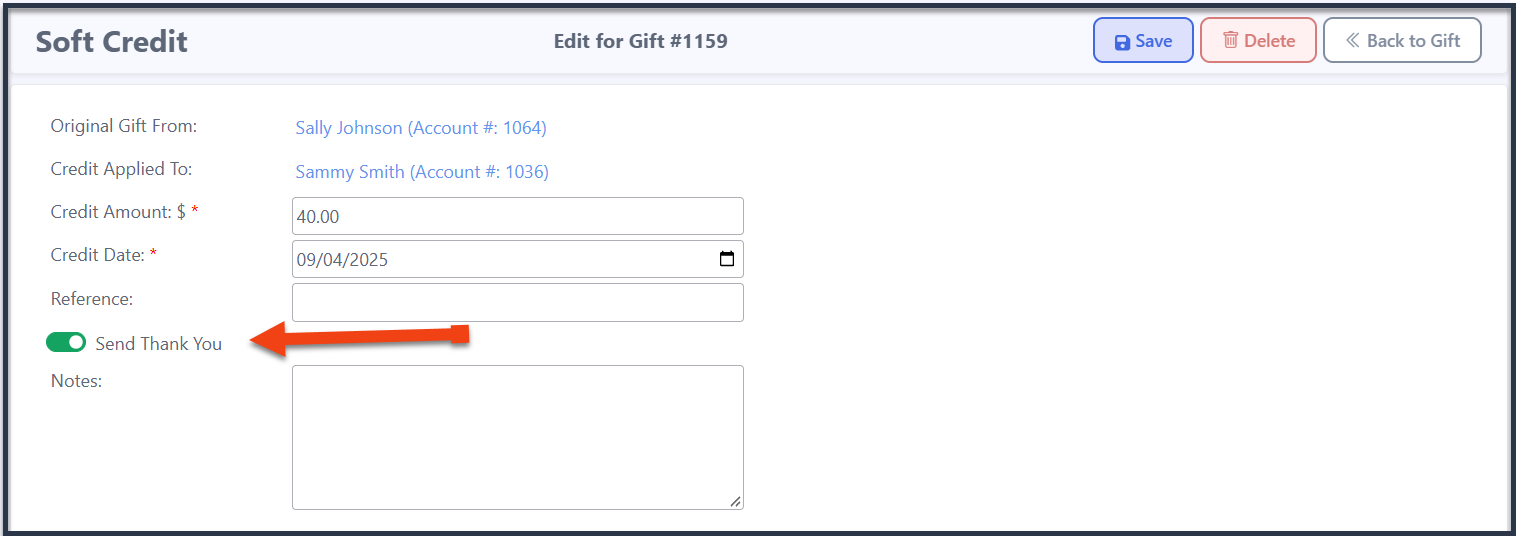
When adding a soft credit or a soft credit from a Donor-Advised Fund, you can choose whether the individual should receive a thank-you or acknowledgement.
Use the Send Thank You option to indicate that an acknowledgement should be sent for the soft credit. This works similarly to the Send Thank You option available when entering a regular gift. Be sure to Save.
Sending a One-Off Thank You
If you want to acknowledge the soft credit right away, you can create and send a one-off thank-you directly from the soft credit entry screen, be sure to save it first!
This can be useful when you want to send an individual acknowledgement immediately rather than include it in a larger mailing.
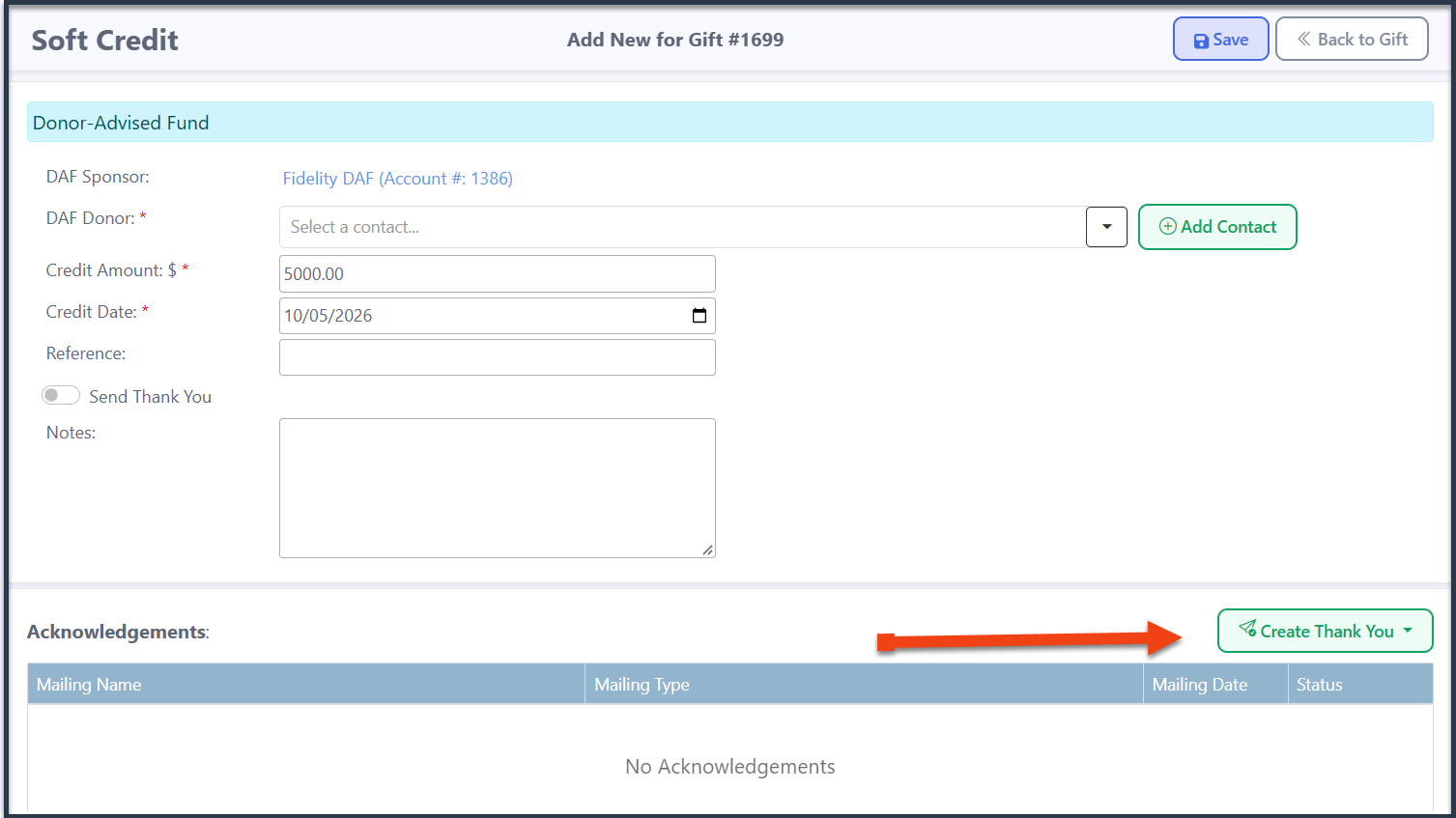
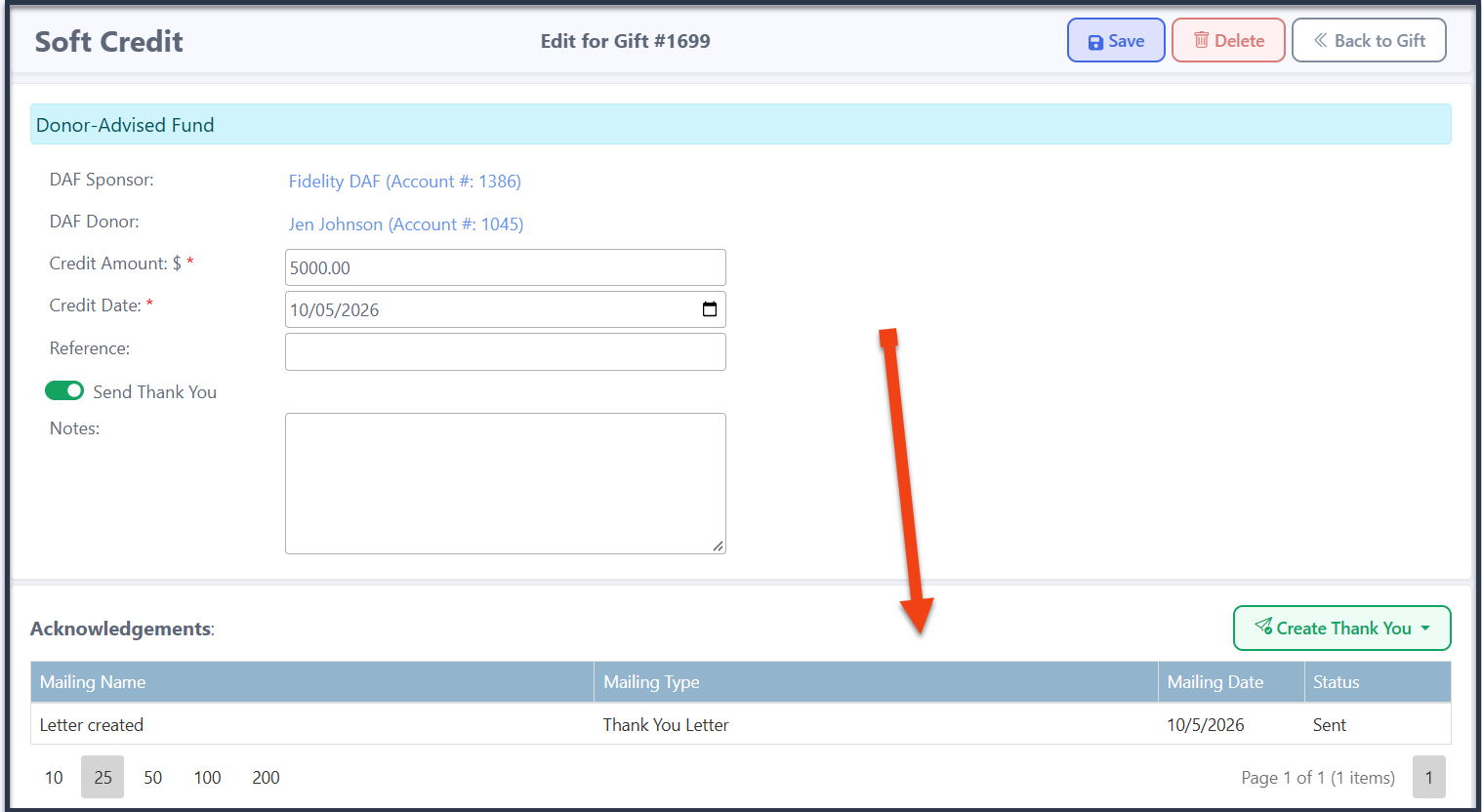
Once you create the thank you, you will need to refresh the page to see that the Acknowledgement is now listed as sent.
Sending Acknowledgements in Batches
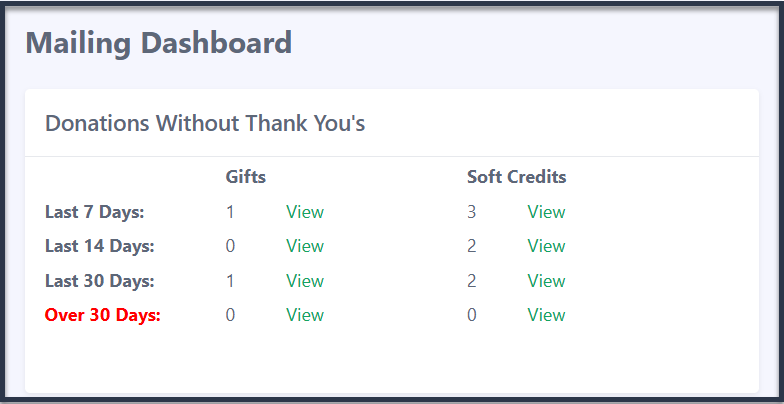
If you prefer to process acknowledgements together, soft credits marked to receive a thank-you will appear in the Mailing Dashboard in the section showing items that need to be thanked.
This is typically the best option when you are ready to create acknowledgements for multiple soft credits at once.
Creating a Soft Credit Acknowledgement Mailing
Soft Credit Acknowledgement is available as a separate mailing type. When creating the mailing, you can choose the mailing method that best fits your organization's workflow.
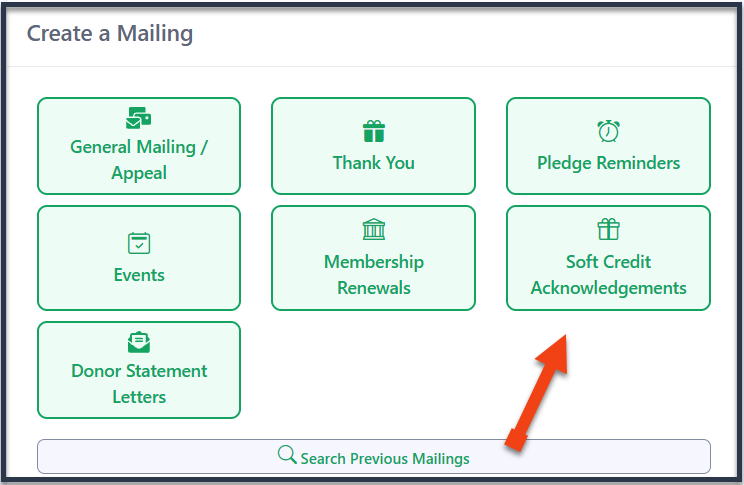
The available mailing methods include:
- Letter
- Mail Merge
- Email Integration
-
Eleo Direct Email
The available merge fields are consistent across these mailing methods, so you can include the information needed to personalize your acknowledgements.
Available Fields
Gift
Gift Number • Gift Amount • Gift Payment Type • Gift Date • Gift Fair Market Value • Gift Net Amount • Gift Check Number • Gift Reference • Gift Notes • Gift Grant Reference
Gift Categories
Gift Campaign • Gift Fund • Gift Appeal • Gift Appeal Category • Gift Tribute • Gift Event • Gift Source
Soft Credit
Soft Credit Amount • Soft Credit Date • Soft Credit Reference • Soft Credit Notes
Other
Current Date
Sponsor
Sponsor Account Number • Sponsor Title • Sponsor First Name • Sponsor Middle Name • Sponsor Last Name • Sponsor Suffix • Sponsor Organization • Sponsor Partner/Spouse
Sponsor Primary Address
Sponsor Address 1 • Sponsor Address 2 • Sponsor City • Sponsor State • Sponsor Zip/Postal Code
Sponsor Communication
Sponsor Formal Salutation • Sponsor Informal Salutation • Sponsor Other Name
Sponsor Employment
Sponsor Job Title • Sponsor Employer
Donor
Donor Account Number • Donor Title • Donor First Name • Donor Middle Name • Donor Last Name • Donor Suffix • Donor Organization • Donor Partner/Spouse
Donor Primary Address
Donor Address 1 • Donor Address 2 • Donor City • Donor State • Donor Zip/Postal Code
Donor Communication
Donor Formal Salutation • Donor Informal Salutation • Donor Other Name
Donor Employment
Donor Job Title • Donor Employer
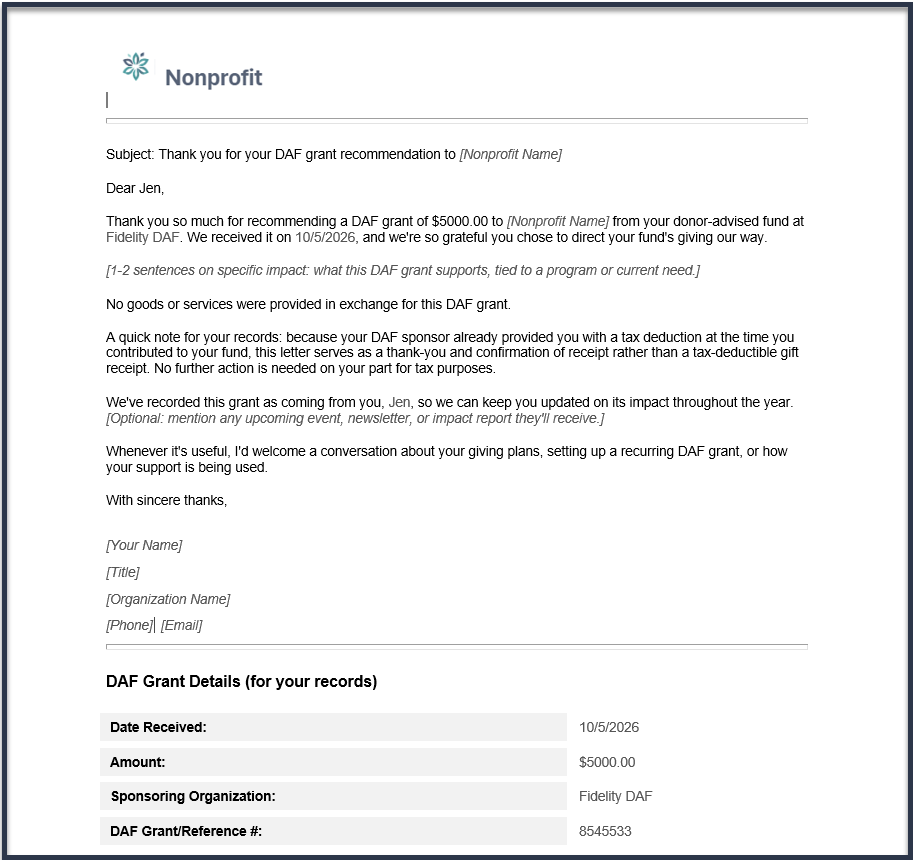
Please Note: A Donor Acknowledgement Letter Template is available as a guide. Feel free to adjust it as needed or create your own template. Custom fields specific to your organization may also appear in the Available Fields list, but are not included in the standard fields listed above..

Example of downloaded Donor Acknowledgement Letter:
Using Mailchimp or Constant Contact
If you use the Mailchimp or Constant Contact integration, only the contact's name and email address are sent through the integration. If you want to include additional information from the Soft Credit Acknowledgement, you will need to download the data file from Eleo and manually upload it to your email marketing platform.